
Appearance
Getting Started
This guide walks you through logging in to Playout and finding your way around the interface.
Logging In
Open your Playout instance in a web browser. You will be presented with the login screen.
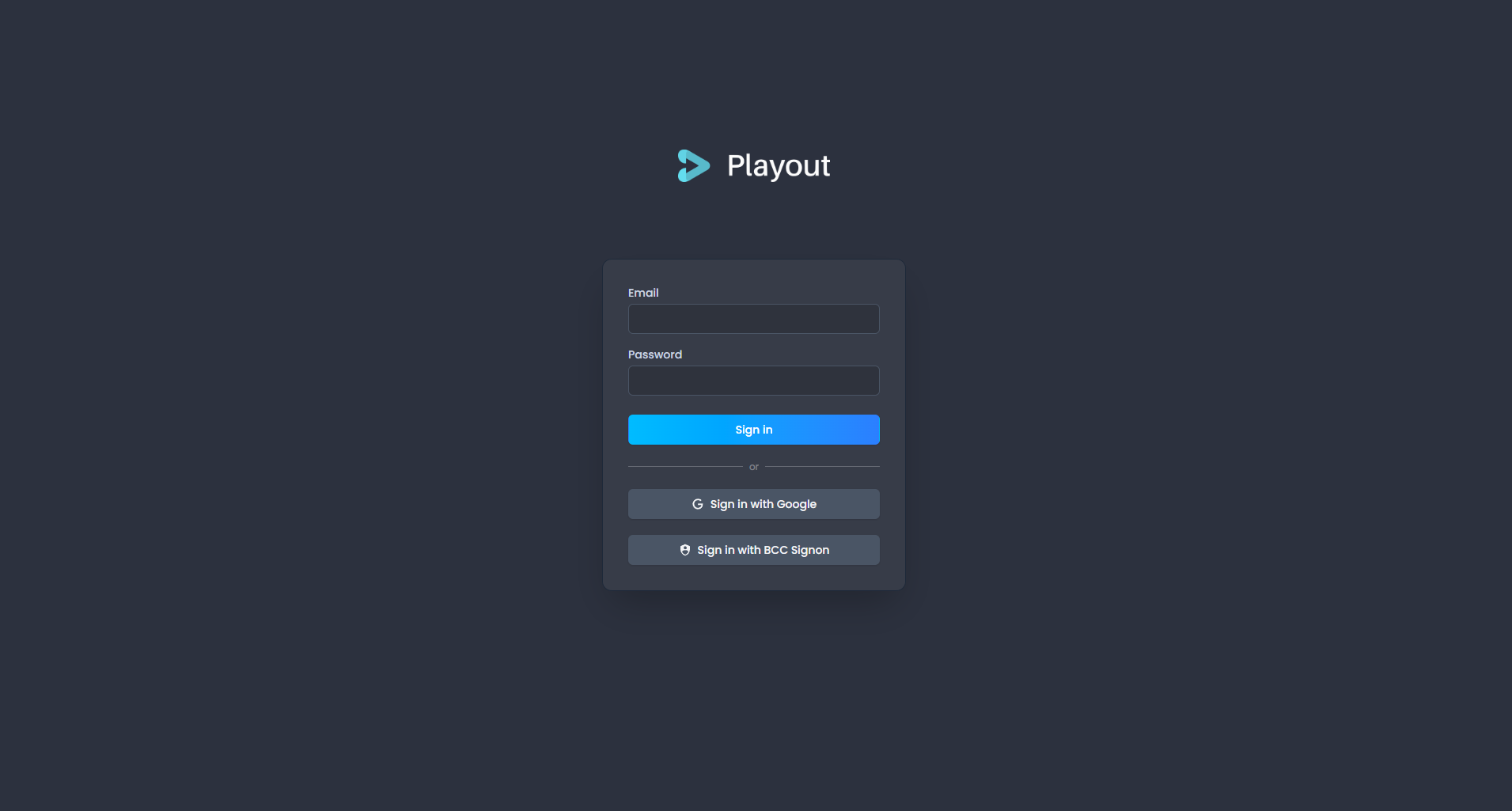
Playout supports three login methods:
- Email & password — Enter the email address and password provided by your administrator.
- Google — Click the Google button to sign in with your Google account.
- BCC Signon — Click the BCC Signon button to sign in via the BCC identity provider. This is the standard method for BCC members.
TIP
If your account is linked to multiple methods, you can use any of them. You can manage linked accounts later from your Profile.
Forgotten Password
If you sign in with email and password and can't remember it, click Forgot password? on the login screen. Enter your email address and click Send reset link.
You will then see a Check your email screen. A reset link is sent to that address and is valid for one hour. If it hasn't arrived, check your spam folder — you can request another with Resend reset link, which becomes available again after 30 seconds.
Open the link and choose a new password on the Set a new password screen. You type it twice, and the page confirms the two entries match before it will let you continue.
INFO
For your security, the confirmation screen always says the same thing whether or not an account exists for that address — so it never reveals who has an account.
Once your password is reset you are signed out on your other devices and will need to sign in again with the new password.
If you open a reset link that has already been used or has expired, you'll see This link isn't valid — click Request a new link to start again.
WARNING
This only applies to email-and-password sign-in. If you use Google or BCC Signon, your password is managed by that provider and must be reset there.
Selecting a Tenant
After logging in, you will see the tenant selection screen. If you belong to a single tenant, you are taken there automatically.
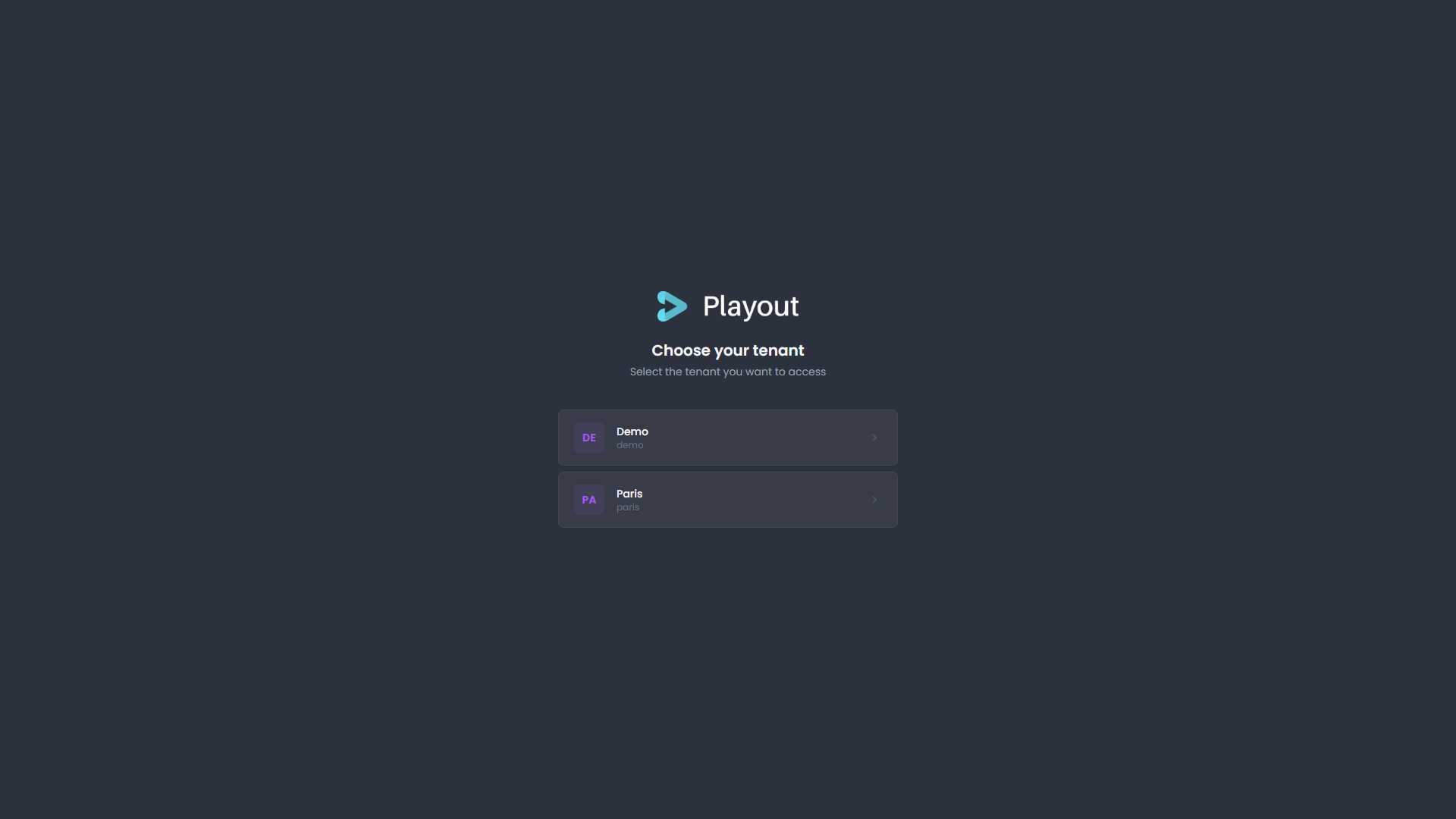
A tenant represents your organization in Playout. All your events, settings, and team members are scoped to a tenant. Select the one you want to work with.
INFO
You can switch tenants at any time using the tenant switcher in the top of the sidebar.
The Interface
Once inside a tenant, you land on the Events page. The interface is divided into a few key areas:
Sidebar
The sidebar on the left is your main navigation. It contains:
- Events — Your event list and calendar
- Custom Songs — Manage songs specific to your tenant
- Settings — Tenant configuration (admin only)
- Help — Contact support
- Feedback — Send feedback via the external feedback portal
When you open an event, the sidebar expands with two additional sections:
- Graphics — Control overlays such as the playlist, persons, songs, bible verses, and screens
- Streaming — Monitor and configure live streaming (if enabled)
Roles
Playout has two roles within a tenant:
| Role | Access |
|---|---|
| Admin | Full access — settings, screens, admin management, and all operator capabilities |
| Operator | Event management, overlays, and streaming controls |
Your current role determines which menu items and actions are available to you.
What's Next?
- Managing Events — Create and control your live events
- Graphics & Overlays — Control what appears on screen
- Settings — Configure your tenant (admins)