
Appearance
Your Profile
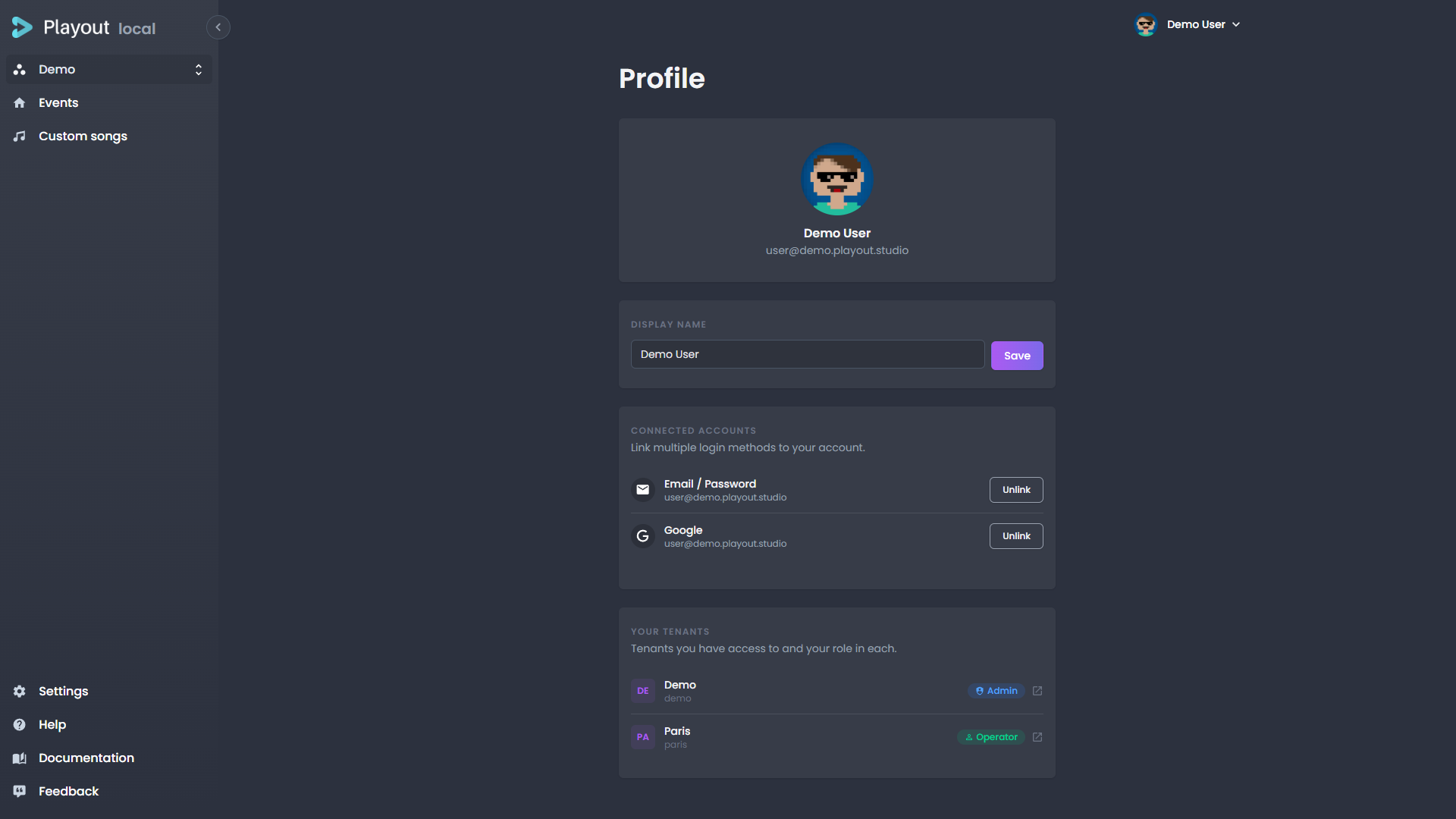
The Profile page lets you manage your personal account settings across all tenants.
Display Name
Your display name appears in the sidebar, audit logs, and anywhere your identity is shown. Click the name field to edit it and save your changes.
Profile Photo
Upload a profile photo by clicking Change photo. After selecting an image, you can crop it to fit before saving.
Connected Accounts
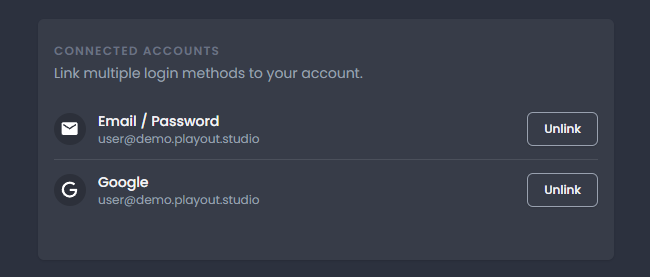
The Connected accounts section shows which login methods are linked to your account.
Linking a Google Account
Click Link Google to connect your Google account. Once linked, you can sign in with either Google or email/password.
Linking Email & Password
Click Link Email / Password and provide the email address and password you want to use. Once linked, you can sign in with this method in addition to any other linked methods.
Unlinking an Account
Click Unlink next to a connected method to remove it. You must always have at least one login method linked.
WARNING
If you unlink your only login method, you will be unable to sign back in. Always ensure you have at least one active method before unlinking another.
Tenants
The Tenants section lists all the organizations your account has access to, along with your role in each one.
| Column | Description |
|---|---|
| Name | The tenant's display name and ID |
| Role | Your role in that tenant — Admin, Operator, or Super Admin |
| Link | Click the arrow icon to navigate directly to that tenant's event list |
TIP
If you belong to multiple tenants, you can use this section to quickly jump between them without going through the tenant selection screen.